


Map Drive - Radar, Speedometer
4.0395.00 Reviews
App Specs
- Version
- 6.5.0
- Updated On
- License
- Free
- Downloads
- 10,000,000+
- Developer
- Tiki Punch Studio
- Categories
- Maps & Navigation
- Platform
- Android
Screenshots
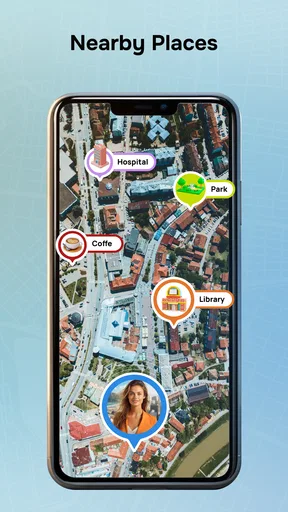
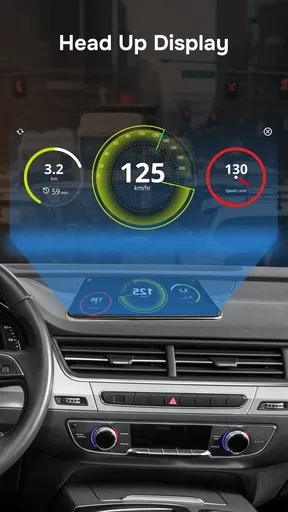
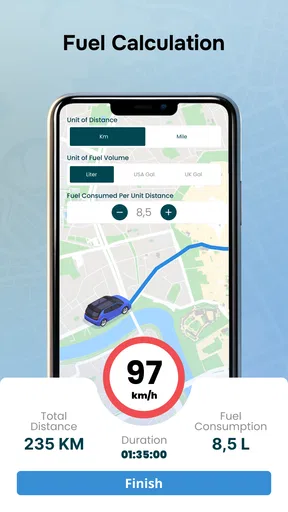
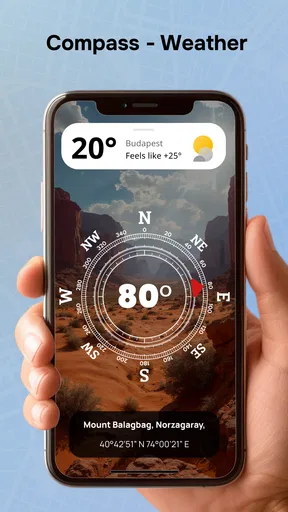
 Analysis by AppCompare
Have you ever found yourself wondering if there’s a way to make your driving experience a bit more exciting while staying safe? Well, I stumbled upon an app that might just be the answer. Let’s dive into my experience with Map Drive - Radar, Speedometer, an app that promises to be your trusty road companion.
A useful extra, not a replacement for good judgement
I’d treat this as a driving aid rather than an authority on every road decision. Combining map guidance, speed information and radar-related alerts can reduce the amount of app-switching on a trip, but it still asks you to use common sense. Road signs, changing conditions and local rules should take priority over anything on a phone screen. I also wouldn’t rely on an alert as a guarantee that a camera or hazard will be announced in time.
That distinction matters most when deciding whether to make this your main navigation app. If you already have a route planner you trust, Map Drive may be more useful as an additional dashboard than as a complete replacement. If you want one place to check several kinds of driving information, its combination is the main appeal.
The Ultimate Road Buddy
First off, if you’re like me and love a good road trip, Map Drive - Radar, Speedometer is designed to keep you informed and entertained. The app combines navigation, speed monitoring, and radar detection in a sleek package. Setting it up was a breeze, and before I knew it, I was ready to hit the road.
Navigation Made Easy
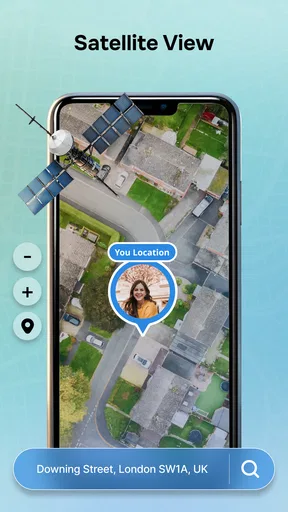
The navigation feature is pretty straightforward, and I appreciate how it integrates seamlessly with the speedometer. It’s like having a GPS and a speed tracker rolled into one. I found the maps to be accurate, and the real-time updates were spot on. You won’t have to worry about missing a turn or getting stuck in traffic because the app keeps you in the loop.
Where setup and first use can snag
Even an easy setup can feel confusing if the basics are not ready before departure. I recommend entering the destination while parked, checking that the route looks sensible, and making sure the phone has a clear view of the sky if GPS positioning seems slow. A location estimate can take time to settle, especially after starting indoors or moving between buildings. Waiting until the car is moving to troubleshoot invites distraction, so I’d sort out any uncertainty before pulling away.
It is also worth checking that the map view and the information you want are actually visible at your preferred screen angle. A compact display may make a combined map and speed readout feel busy, while a larger screen can be easier to scan. I’d avoid changing several settings at once: adjust one thing while parked, then see whether it improves the next short trip. That makes it easier to tell whether a change helped instead of leaving you with a confusing layout.
Worth Reading Before You Choose

Flipboard Shows What News Apps Must Do Beyond the Feed

Switching to Android Auto Means Rethinking Your Driving Routine

Google Calendar Makes a Crowded Week Easier to Manage

Ludo King Makes the Most of the Minutes Between Plans

Baby Panda World Brings Quick Play to Modern Phones, but Its Game Library Feels Busy

ESPN’s Live Game View Makes Following Close Games Easier
Speedometer with a Twist
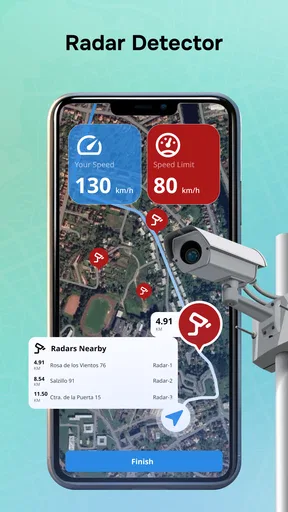
Now, the speedometer feature is where the app really shines. It’s not just about showing you how fast you’re going; it also keeps you aware of speed limits with handy alerts. I know I’m not alone in occasionally forgetting to check speed signs, so this feature is a lifesaver. Plus, the app’s interface is user-friendly, so you can glance at it without getting distracted from the road.
Make speed information work for you
A useful habit is to treat the speed display as a quick cross-check, not as permission to stop looking at the road signs. On unfamiliar roads, limits can change quickly, and a displayed reading may not reflect a temporary restriction or a sign you have just passed. I find the feature most valuable as a reminder to stay attentive, rather than as a substitute for reading the road.
For a daily commute, that distinction keeps the app practical: I can glance at the display when traffic opens up, then return my attention to the road. On a long, open stretch, the same glance can help me notice that my pace has crept up. The benefit is awareness, not a reason to stare at the screen or chase a particular number.
Radar Detection: A Game Changer
What really sets this app apart is the radar detection feature. It provides alerts for speed cameras and other potential road hazards. This is a real game-changer for those longer drives where it’s easy to drift into autopilot mode. I felt more at ease knowing I had a little extra help in avoiding those pesky tickets.
What an alert can—and cannot—do
I’d keep expectations measured here. An alert is a prompt to pay attention, not a promise that every camera or hazard will be detected or announced at the ideal moment. The road environment changes, and an alert that arrives late is less useful than one that gives you time to respond calmly. Since the original app experience can also be affected by phone conditions, I would not use radar warnings as the sole basis for a driving decision.
There is a practical trade-off, too: more warnings can be reassuring on an unfamiliar route, but frequent sounds or screen changes can become another distraction. If an alert setting feels intrusive, revisit it while parked rather than fiddling with it on the move. The goal is a quiet cue that supports attention, not a stream of interruptions that competes with traffic.
User Experience and Interface
The app’s design is sleek and modern. Everything is where you’d expect it to be, and the colors are easy on the eyes. Even during nighttime driving, the app remains visible without being too bright. I also loved how customizable the settings are, letting me tweak it just the way I like.
Keep the screen secondary
Customization is most helpful when it reduces the need to look down. I’d choose a layout that makes the information I care about easy to find at a glance, then leave it alone during the drive. A phone mount can help with visibility, but the screen should still sit where it does not block the road. If you find yourself reading the map for too long, pull over safely before changing a route or exploring menus.
Night visibility is welcome, but brightness depends on the phone and the surrounding conditions. I’d set the screen before setting off and avoid making it so bright that it becomes the most noticeable thing in the car. Drivers who prefer spoken directions or a dedicated in-dash display may find a phone-based interface less convenient, even if the app itself is easy to navigate.
Additional Features
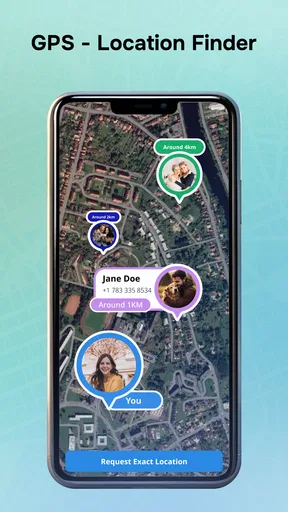
Beyond the basics, there are a few neat extras. The app offers a trip log that records your journeys. I found this perfect for keeping track of my travel stats or even just reminiscing about past trips. The ability to share your location with friends is another bonus, especially when coordinating meetups on the go.
Everyday workflows and alternatives
For a realistic use case, imagine leaving work for an unfamiliar part of town to meet a friend. I’d set the destination before leaving, use the map to follow the route, and share my location if coordinating arrival matters. The trip log can make the journey easier to look back on afterward. This is a more sensible use of the app’s mix than trying to manage the map, messages and settings at once while driving.
Compared with a typical navigation-only app, Map Drive’s attraction is having speed and radar-related information alongside route guidance. A dedicated navigation tool may still suit you better if route planning is your only priority or you prefer an interface built around directions alone. Conversely, a standalone speedometer does not offer the same all-in-one feel. I see this app as a practical middle ground for drivers who want those functions together, not as an automatic winner over every specialist alternative.
Its trip log and location-sharing options also suit different needs. The log is useful if you like reviewing where you have driven, while sharing can help a friend know when you are approaching. If you only need turn-by-turn directions and never use those extras, their presence may not change your choice; the simplest app that meets your needs is often the better one.
Room for Improvement
While I enjoyed using the app, no app is without its quirks. Occasionally, the radar alerts were a bit delayed, but it wasn’t a constant issue. I’d love to see future updates that enhance this feature further. Also, if you’re using your phone for music or calls, the app can sometimes pause, which is a minor hiccup in an otherwise smooth ride.
Recovering from interruptions
If the app pauses or seems to lose its place, I would first wait until safely parked before reopening it or changing anything. Then I’d check whether the route is still active and whether the map has returned to a useful view. For a temporary interruption, restarting the current navigation session may be more straightforward than repeatedly tapping around while the car is moving. If another app is taking over the screen for a call or music control, keeping the driving task first is more important than trying to restore every display immediately.
When location or traffic information appears slow, a short pause in a safe place gives the phone a chance to settle. If the issue continues, checking the device’s location setting and connection is a reasonable general troubleshooting step; it does not establish that the app itself is at fault. I’d also keep the app updated when convenient. The current version is 6.0.0, and Tiki Punch Studio is the developer.
Who will appreciate it—and who may not
I can see this being a good fit for drivers who want navigation, speed awareness and radar-style alerts gathered in one place, especially on routes they do not know well. It may also appeal to commuters who like a quick speed check and occasional trip records without switching between several tools. Since it is free and rated for Everyone, it is easy to consider, though children should not be using a phone while driving; the age label is not a recommendation for unsupervised use behind the wheel.
I would skip it if you need a guaranteed camera-warning system, if you dislike phone screens in the car, or if a navigation app you already use handles your trips more reliably for your needs. Drivers who depend on uninterrupted audio or a dedicated vehicle display may also prefer another setup. The app has an average rating of 4.1 from around nineteen thousand ratings, with roughly 383 written reviews and over ten million installs, so it has reached a broad audience, but those figures cannot tell you how it will behave on your device and routes.
When the phone, route or conditions are the real issue
Not every missed update points to an app problem. A phone placed out of sight, a weak GPS view, a brief connection interruption or another app coming forward can all affect what you see while driving. I’d separate those possibilities one at a time: check the placement while parked, try a familiar route, and notice whether the difficulty happens only when calls or music are active. That simple comparison can prevent unnecessary setting changes.
Traffic and road conditions can also shift faster than any display can make them feel. If a route looks wrong, follow road signs and make a safe decision rather than forcing the phone’s suggestion. For drivers who need offline certainty or highly specialized routing, a dedicated navigation option may be the wiser choice. Map Drive is most convincing when treated as a helpful companion for ordinary driving, not as the final word on every turn or alert.
Overall, Map Drive - Radar, Speedometer has become a staple in my driving routine. It’s perfect for those who want to stay informed and safe on the road. With its combination of navigation, speed tracking, and radar alerts, it’s like having a co-pilot who never gets tired. Whether you’re a daily commuter or a weekend road warrior, this app is definitely worth a spin.
My recommendation comes with one condition: set it up before the journey and let it support, rather than replace, attentive driving. It is a free Maps & Navigation app released on January 18, 2023, and its minimum operating-system requirement is version 7.0. Those details make it straightforward to try on a compatible device, but the best reason to keep it is practical: you value having route guidance, a speed readout and alerts together. If that combination feels crowded or less dependable than your usual tools, there is no need to force it into your routine.
Pros
- Accurate GPS tracking for real-time navigation.
- Customizable speed alerts for safety.
- Offline map access for remote areas.
- User-friendly interface with intuitive controls.
- Regular updates with new features.
Cons
- Consumes significant battery power on long drives.
- Limited features in the free version.
- Occasional GPS signal drops in urban areas.
- Ads can be intrusive in free mode.
- Requires large storage for offline maps.
FAQs for Map Drive - Radar, Speedometer
What features does Map Drive - Radar, Speedometer offer?
Map Drive - Radar, Speedometer provides a comprehensive suite of features including real-time speed monitoring, radar detection for traffic enforcement cameras, and detailed navigation assistance. The app also offers customizable alerts for speed limits, voice-guided navigation, and integration with your vehicle's dashboard for a seamless driving experience.
Is Map Drive - Radar, Speedometer compatible with my device?
Map Drive - Radar, Speedometer is compatible with both Android and iOS devices. It requires at least Android 7.0 or iOS 12.0 to function optimally. It's recommended to ensure your device meets these specifications for the best performance and access to all features.
How accurate is the speedometer feature in Map Drive?
The speedometer in Map Drive is highly accurate, utilizing GPS technology to provide real-time speed data. However, accuracy can be affected by factors such as poor GPS signal or environmental interference. For the most precise readings, ensure your device has a clear view of the sky and is properly mounted in your vehicle.
Are there any subscription fees for Map Drive - Radar, Speedometer?
Map Drive offers a free version with basic features, but advanced functionalities like radar detection and ad-free navigation require a subscription. Pricing is competitive, with monthly and yearly plans available. Subscriptions also include regular updates and priority customer support.
How can I ensure the app's radar detection feature works effectively?
To maximize the effectiveness of the radar detection feature, keep the app regularly updated and ensure you have a stable internet connection. The app relies on community-driven data and local databases to provide timely alerts, so staying connected enhances its accuracy and reliability.


